
This lesson introduces Rule Builder, a powerful capability in Quality Clouds that allows organizations to create and customize their own Best Practices without writing code.
Rule Builder enables teams to embed their internal governance standards and best practices directly into Quality Clouds scans. By defining custom rules, organizations can ensure that their specific requirements are automatically validated, supporting consistent quality and compliance across all environments.
Rule Builder can be accessed directly from Quality Clouds Admin Portal, allowing administrators to create and manage rules within their development workflow.
Key Capabilities
Rule Builder provides a flexible and user-friendly way to define and enforce quality standards across the platform. Key capabilities include:
- No-code rule creation – Define custom quality rules without technical complexity
- Automated rule generation – Rule metadata and conditions are generated based on user input
- Built-in validation – Test rules against real instances before publishing
- Flexible governance – Adapt and refine rules as organizational policies evolve
- Consistent enforcement – Apply custom standards automatically across all scans
By enabling organizations to define their own rules, Rule Builder ensures that platform governance is aligned with internal standards.
How Rule Builder Works
Rule Builder guides users through the full lifecycle of creating and activating a custom rule. Access Rulesets section in Quality Clouds Admin Portal and Add new Rule
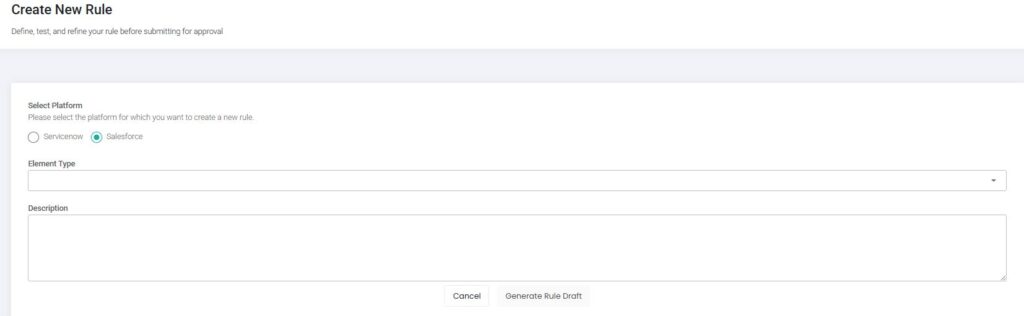
1. Define the Rule
Start by selecting the configuration element type and providing a description of the rule you want to create.
2. Review Rule Metadata
Based on your input, Rule Builder automatically generates key rule attributes, including:
- Rule name
- Severity
- Impact area
- Rule impact
- Recommended actions
- Estimated remediation time
You can review and adjust this information before proceeding.
3. Generate Rule Conditions
Once the metadata is confirmed, Rule Builder automatically creates the underlying rule logic required to detect the issue.
4. Test the Rule
Before publishing, you can validate the rule by running it against a real instance. To do this, you provide:
- Instance ID
- Configuration element name
The platform executes a live test and displays the results immediately.
5. Iterate and Refine
Based on the test results, you can:
- Modify the rule
- Re-test the logic
- Continue refining until the expected behavior is achieved
6. Publish and Activate
Once validated, the rule can be published to your Quality Clouds account. By default, custom rules are created in a deactivated state.
To activate them:
- Navigate to the Ruleset section in the Quality Clouds Admin Portal
- Locate the rule under Best Practices
- Enable the rule
Once activated, the rule will be applied in future scans.
Use Cases
Rule Builder can be used to support a wide range of governance and quality scenarios, such as:
- Protecting critical configuration elements from unauthorized changes
- Enforcing organization-specific development standards
- Applying different rules across applications or environments
- Supporting compliance, audit, and security requirements
- Extending standard Quality Clouds rules with custom logic
Enabling Proactive Governance
Rule Builder shifts organizations from reactive issue detection to proactive quality governance.
By creating and enforcing custom rules, teams can ensure that their platforms are continuously validated against their own standards, reducing risk and improving long-term maintainability.
With Rule Builder, every scan becomes more aligned with your organization’s unique requirements, enabling smarter governance and more consistent platform quality.