
Introduction
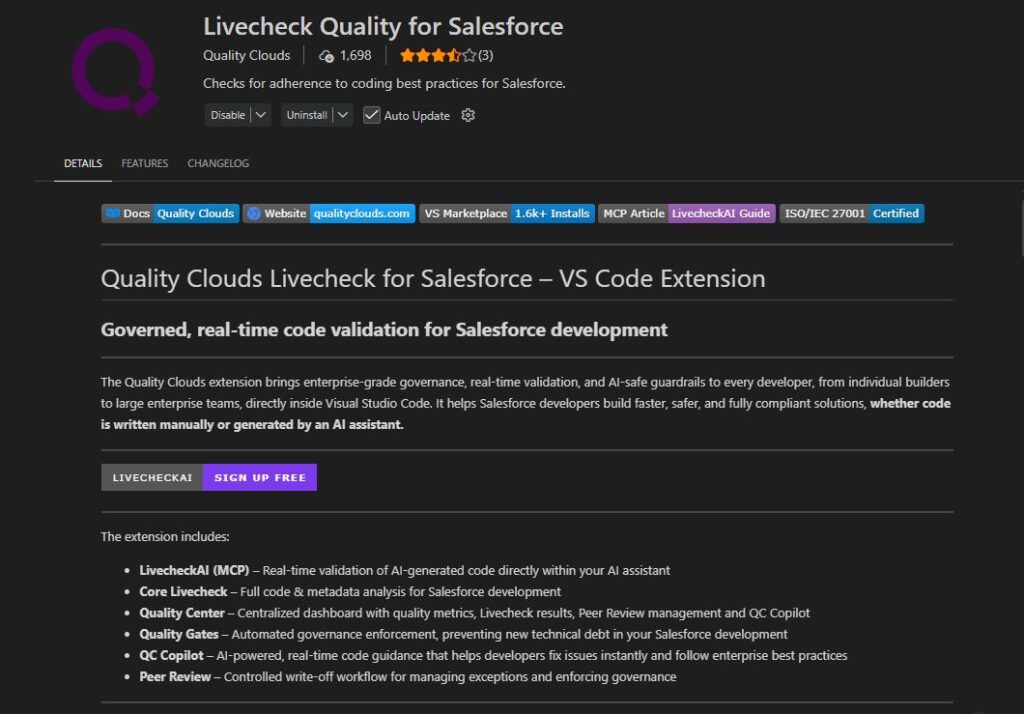
In this lesson, you will learn how the Quality Clouds extension for Visual Studio Code works. This extension allows developers to integrate automated code quality analysis directly into their development environment.
By connecting Visual Studio Code with Quality Clouds, developers can analyze Salesforce code locally and ensure that it follows best practices, coding standards, and governance policies defined by their organization.
This integration helps teams detect issues earlier in the development process and maintain consistent code quality across projects.
Benefits of the Extension
Using the Quality Clouds extension in Visual Studio Code provides several advantages for development teams. With the extension, developers can:
• Receive instant feedback on code quality
• Enforce coding standards during development
• Detect potential issues before committing code
• Reduce technical debt earlier in the development lifecycle
• Integrate quality checks into their daily workflow
By addressing issues earlier in development, teams can reduce manual reviews and prevent problems later in the deployment pipeline.
Installing the Extension
To install the Quality Clouds extension:
- Open Visual Studio Code
- Navigate to the Extensions panel
- Search for Livecheck Quality for Salesforce
- Click Install
Once installed, the extension will be available in your VS Code environment. You can follow the step by step guidance on how to configure in this article.
What You Can Do with the Extension
Once connected, developers can use the extension to analyze Salesforce code directly from Visual Studio Code. The extension supports scanning several Salesforce configuration elements, including:
• Apex Classes
• Triggers
• Visualforce Pages
• Lightning Components
• Objects
• Reports
• Workflows
• Flows
• JavaScript
This allows developers to validate both code and configuration elements during development
Livecheck in Visual Studio Code
Introduction
Livecheck allows developers to scan their code locally and identify issues as they write code. This enables developers to detect and resolve problems earlier in the development lifecycle, before committing or promoting their changes.
What is Livecheck?
Livecheck is a capability that allows developers to run automated code quality checks directly within Visual Studio Code.
The scan analyzes your code using the rules and Quality Gates configured for your Quality Clouds project, ensuring that the same standards applied in your organization are also enforced during development.
This provides immediate feedback and helps developers maintain high code quality.
Why Use Livecheck?
Running Livecheck during development helps teams maintain consistent coding standards and prevent issues later in the release pipeline. Using Livecheck allows developers to:
• Detect issues before committing code
• Reduce technical debt early in development
• Ensure compliance with coding standards
• Speed up code reviews
• Prevent Quality Gate failures later in the pipeline
This allows developers to address issues while the context of the code is still fresh.
Running a Livecheck
To run a Livecheck in Visual Studio Code, open the file you want to analyze in the editor.
Right-click anywhere inside the code editor, then select Quality Clouds Run Launch Livecheck from the context menu.
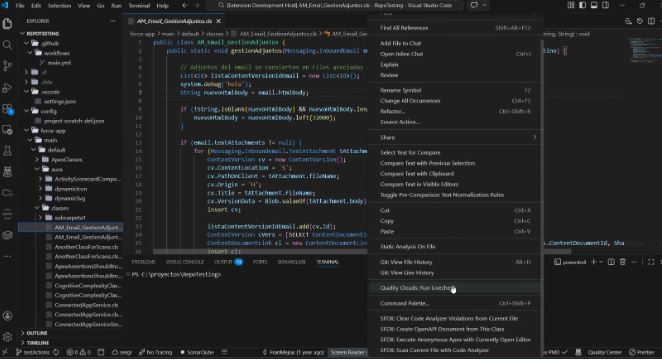
This action triggers an immediate analysis of the current file. The scan evaluates the code against your organization’s quality rules and best practices, identifying potential issues such as coding standard violations, security risks, or maintainability concerns.
Once the Livecheck is completed, the detected issues are displayed in the Problem panel, allowing developers to quickly review and address them before committing their changes. Each issue includes:
• Issue type
• Severity level (Low, Medium, High, Warning)
• Quality Gate impact
• Exact location in the code
• A link to the related best-practice documentation
Clicking on an issue will take you directly to the line of code where the problem was detected.
Fixing Issues
Most issues can be resolved by modifying the code according to the recommended best practices. Once a fix is applied, developers can run Livecheck again to confirm the issue has been resolved.
This quick feedback loop allows developers to continuously improve their code as they work.
Requesting a Write-Off
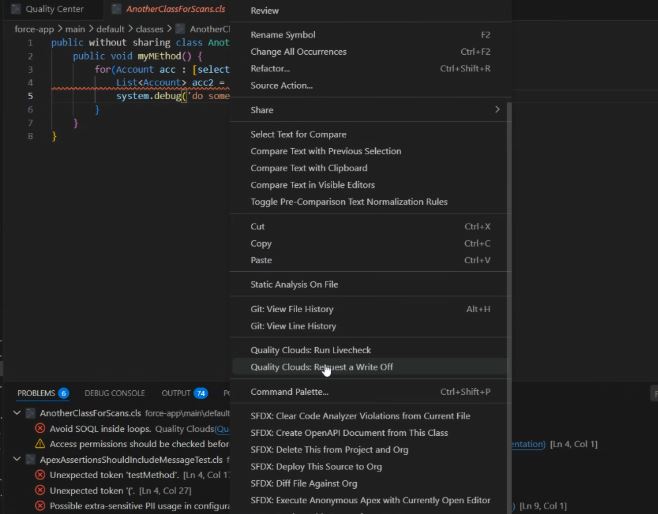
If an issue is acceptable due to specific project requirements, developers can request a write-off. To request a write-off:
- Select the issue from the Problems panel
- Click Write Off
- Provide a justification
- Submit the request for approval
If approved, the issue will be excluded from future scans.
QC Copilot (Optional Add-on)
QC Copilot is an optional AI-powered add-on available for the VS Code extension.
When enabled, it helps developers resolve issues faster by generating AI-based recommendations directly within the editor. QC Copilot can:
• Analyze detected issues
• Suggest potential fixes
• Allow developers to preview changes before applying them
Developers can apply or discard the suggested fix and optionally rate the recommendation to improve future suggestions. This feature helps accelerate development while maintaining high code quality.
Quality Center in Visual Studio Code
Introduction
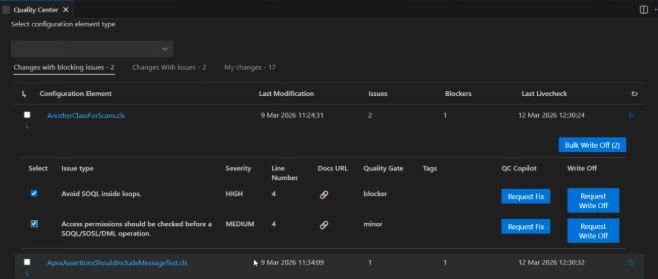
Quality Center provides developers with a structured view of all elements they have modified, and the percentage of quality checks completed. This allows them to quickly detect non-quality check completed over the elements, or analyze detected issues, understand their impact, and prioritize remediation in the elements with a livecheck completed, directly from their development environment.
This helps developers quickly identify the most important issues and take action without leaving Visual Studio Code.
What is Quality Center?
Quality Center is the interface where developers can review the results of their Livecheck scans. It provides a centralized view of:
• detected issues
• severity levels
• affected configuration elements
• quality gate status
• technical debt indicators
By organizing scan results in a structured way, Quality Center makes it easier for developers to understand where the actions are needed.
Configuration Elements View
The Configuration Elements view provides visibility into the files that have been modified since a selected date. This view allows developers to understand the impact of recent changes by displaying:
• Modified Elements
• Elements that have already been scanned
• Blocker issues
• Estimated time required to fix issues
It also provides useful metrics such as:
• Coverage – how many modified files have been scanned
• Blockers – critical issues detected
• Time to Fix – estimated effort required to resolve issues
These indicators help teams understand the current quality status of recent development activity.
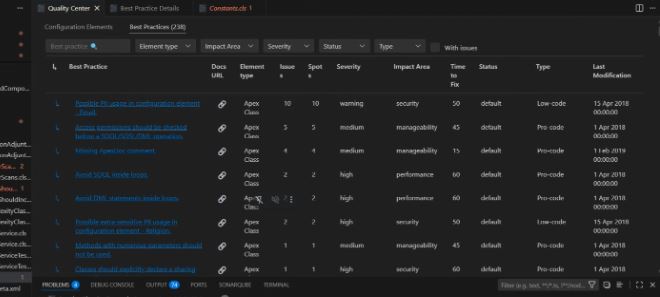
Best Practices View
The Best Practices view provides an overview of the coding standards applied to the project. This view helps developers identify which best practices currently have active issues and how frequently those issues have been detected. By analyzing these patterns, teams can:
• identify recurring development problems
• understand which standards are frequently violated
• prioritize improvements in development practices
Each best practice also includes a link to documentation explaining the rule and recommended solution.
Key Takeaway
Quality Center provides developers with a structured view of code quality results directly within Visual Studio Code. By combining Livecheck scans with detailed issue analysis, developers can quickly identify problems, understand their impact, and take corrective action without leaving their development environment.