Quality Center Overview
This lesson introduces Quality Center, a centralized workspace in the Salesforce platform that helps developers monitor and improve the quality of their work.
Quality Center provides visibility into configuration elements modified in the org and allows developers to assess the quality of their changes through automated QC Livechecks and peer review workflows. By analyzing modified elements and highlighting potential issues, it helps teams detect risks early and ensure development aligns with established best practices.
Through sections such as My Changes, All Changes, and Best Practices, developers and platform owners can track development activity, review detected issues, and prioritize remediation efforts. This enables organizations to maintain consistent governance and improve overall platform quality directly within the development environment.
Connecting Quality Center
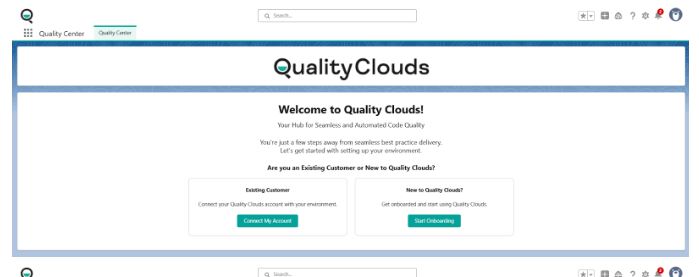
To get started, customers must first download and install the Quality Center package integration in their Salesforce environment and complete the initial configuration steps. This setup enables the Quality Center application to communicate with the Quality Clouds platform and retrieve quality analysis results. You can follow detail steps on this article.
Once the integration is installed and configured, authentication is performed through the Quality Clouds Admin Portal, where administrators create developer users and assign the appropriate roles. After the account is activated, developers can authenticate and connect their Salesforce environment to the selected Quality Clouds project.
Establishing this connection allows Quality Center to link development activity with Quality Clouds analysis results, enabling teams to monitor code quality, track issues, and validate changes directly within their Salesforce environment.
My Changes
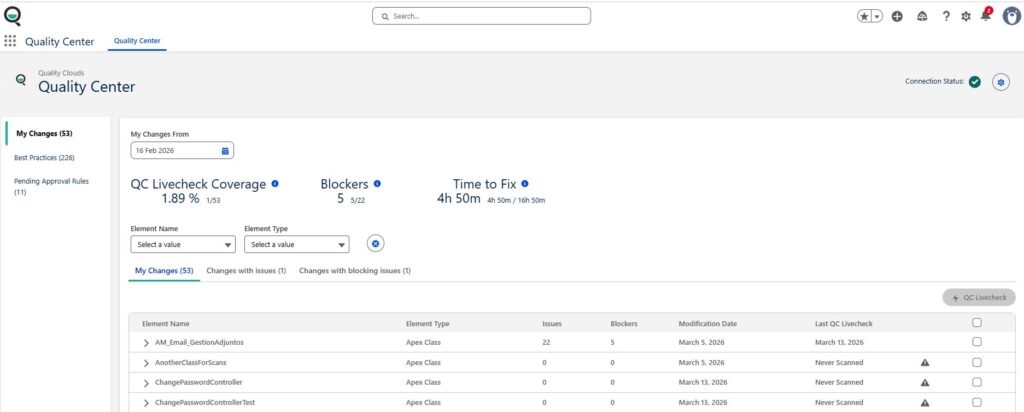
This section explains how to use the My Changes view to track configuration elements modified by the logged-in user.
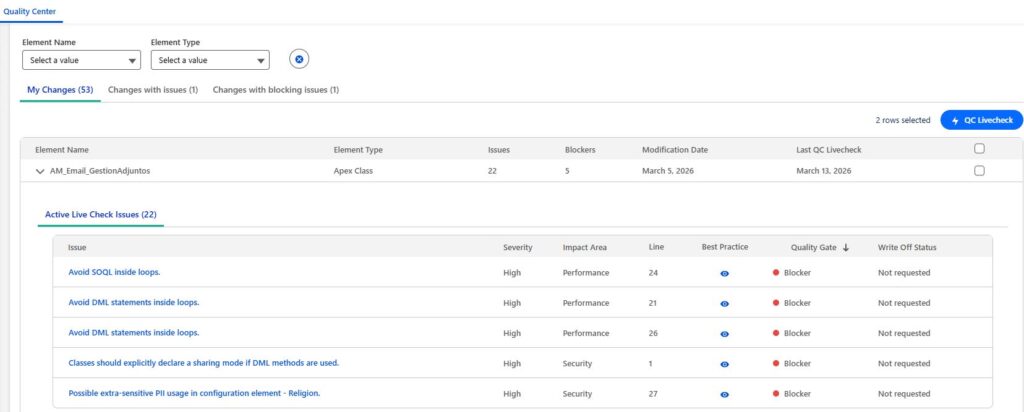
The My Changes view provides visibility into the elements a developer has modified within a selected time range. It highlights key quality indicators such as Livecheck coverage, blocking issues, and estimated time required to fix detected problems.
By focusing on modified elements and associated issues, developers can quickly identify potential risks in their changes and prioritize remediation actions before promoting code to higher environments.
Running QC Livechecks
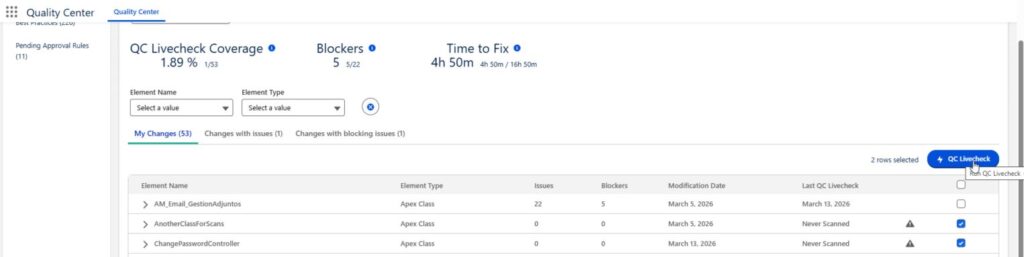
QC Livechecks allow developers to scan individual elements or multiple elements at once to detect quality issues. These scans evaluate code and configuration against established best practices and governance rules.
By running Livechecks during development, teams can identify problems early, reduce rework, and ensure that their changes comply with organizational quality standards before deployment.
Reviewing Issues in Quality Center
Each detected issue includes detailed information such as severity, impact area, quality gate categorization, and estimated fix time. Developers can also access documentation describing the relevant best practice and guidance on how to resolve the issue.
By providing contextual information and direct access to affected elements, Quality Center helps developers investigate issues efficiently and implement appropriate fixes.
Best Practices Section
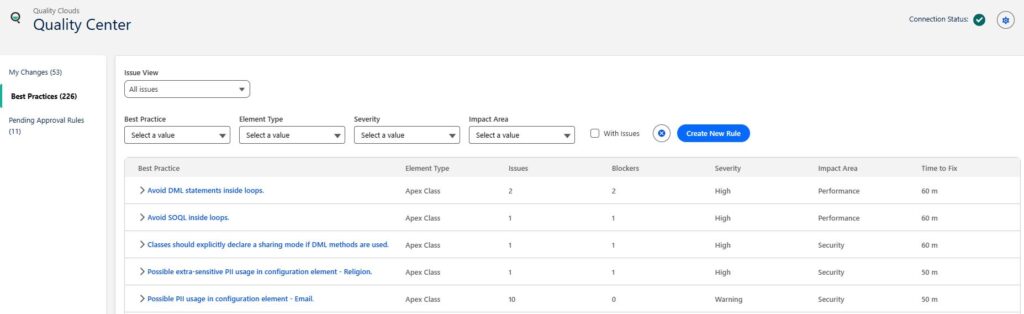
The Best Practices screen lists all active best practice rules and highlights how frequently each rule is violated. This helps teams identify recurring patterns and focus on the most common sources of technical debt.
By reviewing these insights, developers can better understand platform standards, avoid common mistakes, and improve development practices over time.